








10 Hidden Windows 11 Features That Replace Third-Party Apps
 ·
07.09.2026 21:30
·
4 min read
·
07.09.2026 21:30
·
4 min read
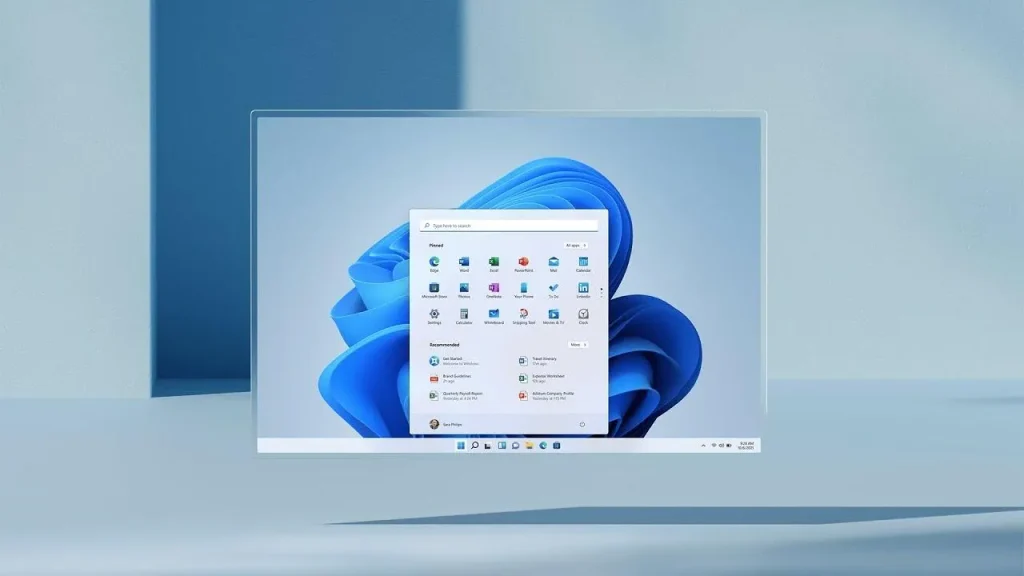
Windows 11 includes dozens of handy tools that many users do not even know exist. Microsoft often hides useful utilities behind obscure keyboard shortcuts or deep inside system settings. As a result, people keep installing heavy third-party software for tasks the operating system has long been able to handle natively.
Below are ten built-in system features — ranging from a smart clipboard and local text recognition to wireless file sharing and instantly closing frozen apps.
Text Tools: Clipboard History, Built-In OCR, and Dictation
1. Clipboard history (Win + V). The standard Ctrl + C shortcut overwrites copied data by default, but pressing Win + V activates an expanded clipboard. The system can store up to 25 recent text snippets, links, and images up to 4MB each. You can pin essential items so they remain after a reboot. Microsoft’s documentation also details clipboard sync across different PCs via your account, though transferring sensitive passwords through the cloud is not recommended.
2. Extracting text from screenshots. You no longer need services like Google Lens to retype text from a photo, scan, or video frame. Take a screenshot using Win + Shift + S, open it in the native Snipping Tool app, and click the Text Actions icon. According to the tool’s documentation, optical character recognition (OCR) runs locally on the CPU without sending the image over the network. You can also redact phone numbers and email addresses with a single click before sending the file to colleagues.
3. Voice typing in any app (Win + H). Place your cursor in any text field — from a browser chat to an Excel cell — and press Win + H. A dictation panel will open with support for automatic punctuation. Microsoft’s voice typing guide notes that the basic service relies on Azure Speech cloud capabilities, so an active internet connection is required.
Window Management and Laptop Gestures
4. Task isolation with virtual desktops. If your screen is cluttered with dozens of windows, pressing Win + Ctrl + D creates a clean workspace. You can switch between desktops using Win + Ctrl + Left/Right Arrow or via the Win + Tab menu. The desktop configuration page notes that each screen can be assigned its own name and independent wallpaper — allowing you to separate work setups, games, and personal messaging apps.
5. Precision touchpad gestures. If your laptop supports Precision Touchpad standards, the touchpad can replace half of your keyboard shortcuts. Swiping up with three fingers opens the open windows view, swiping down with three fingers minimizes everything to the desktop, and swiping left or right switches between active apps. A full list of combinations is available in Windows touch gestures documentation.
Security and System Utilities
6. Dynamic PC locking via smartphone (Dynamic Lock). You can set your computer to lock automatically when you walk away from your desk. Simply pair your phone with your PC over Bluetooth, go to Settings → Accounts → Sign-in options, and enable the feature. According to Microsoft Support, the system monitors Bluetooth signal strength and locks the screen about a minute after your smartphone goes out of range.
7. Quick link menu (Win + X). Right-clicking the Start button or pressing Win + X opens a power user menu. It saves you from searching for Device Manager, PowerShell/Terminal, Disk Management, network adapter settings, and Task Manager.
8. Direct file transfers with Nearby Sharing. This built-in AirDrop alternative lets you transfer files between nearby PCs without messaging apps or USB drives. Enable it in Settings → System → Nearby sharing. To send a file, right-click a document in File Explorer, select Share, and choose the destination PC within range of your home Wi-Fi or Bluetooth network.
Interface Tweaks
9. “End Task” button right on the taskbar. You no longer need to open Task Manager to force quit a frozen app. Head to Settings → System → Advanced Settings and turn on the “End Task” toggle. After that, right-clicking any frozen app icon on the taskbar will show a direct option to terminate the process (End Task).
10. Adjusting volume with the mouse wheel. Hover your cursor over the speaker icon in the bottom right corner of the taskbar and scroll the mouse wheel. Volume increases or decreases in steps without clicking or opening the pop-up volume mixer. The feature works natively at the OS level starting with stable builds of Windows 11.
Where to Start
You don’t need to adopt all these options at once. The most practical approach is to start with three tools that deliver immediate value in daily tasks: Clipboard History (Win + V), text extraction in Snipping Tool, and the quick End Task button on the taskbar. They require no complex configuration and save significant time during everyday computer work.