









How to Run AI Locally on Your PC in 2026: A Step-by-Step Guide
 ·
14.08.2026 11:23
·
13 min read
·
14.08.2026 11:23
·
13 min read
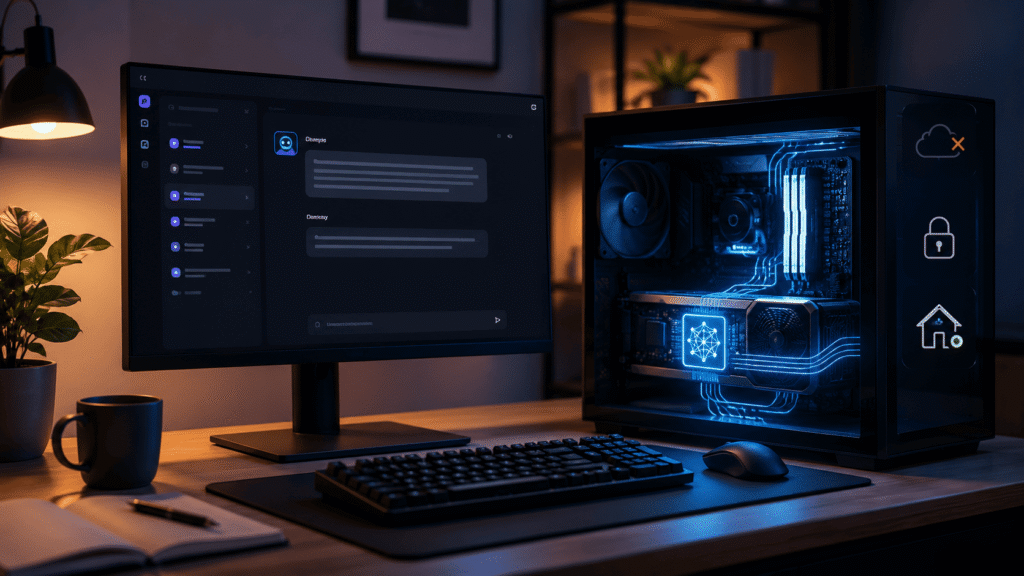
ChatGPT, Gemini, and other popular AI models run on someone else’s servers: you send a request over the internet and get a ready-made answer. But you can also run a modern language model right on your home computer—sometimes even without a powerful graphics card.
In that case, the model downloads to your SSD and uses your PC’s CPU, RAM, and GPU. After installation, you don’t need an internet connection at all: chatting, working with documents, and generating text can all happen entirely locally.
Let’s walk through the simplest way to do this in 2026—no Python, no command line, no complex setup.
Why Run an AI Model on Your Own PC?
Cloud services have an obvious advantage: nothing to install, and powerful servers handle the heavy lifting. So a local model isn’t a free replacement for something like ChatGPT in every scenario.
But it has its own perks.
First, privacy. If the model runs entirely locally, you don’t have to send your queries or uploaded documents to a third-party server. LM Studio explicitly states that when you work with a downloaded local model, your chat content stays on your device.
Second, once the model is downloaded, you don’t need the internet. That can come in handy on the road, with an unstable connection, or just when you want an AI tool that doesn’t depend on whether some service is available.
Finally, there’s no per-query fee or a cap of a few dozen messages. The only limit is your own hardware.
The flip side is obvious: the smarter and larger the model, the more memory it needs. A small model will run fine on an average home PC, but truly large ones can require tens of gigabytes of RAM and VRAM.
What You’ll Need
For your first try, the easiest option is LM Studio. It’s a regular program with a graphical interface that looks like familiar AI chats. Inside, you can find a model, download it, run it, and start chatting right away.
LM Studio is available for Windows, macOS, and Linux. For Windows, the developers recommend at least 16 GB of RAM and a graphics card with 4 GB of dedicated VRAM. On x64 processors, AVX2 support is also required.
That’s a recommendation, not a hard rule that anything less won’t work at all. Small models need much less memory. But on a PC with 8 GB of RAM, running Windows, LM Studio, and an AI model at the same time isn’t very comfortable.
A graphics card isn’t strictly necessary either. You can run the model on the CPU—it’ll just respond noticeably slower. If you have a modern NVIDIA, AMD, or supported integrated GPU, you can offload some or all of the workload to it.
First, Check What Hardware You Have
Before downloading a model, you need to know at least two numbers: the amount of RAM and VRAM.
On Windows, press:
Ctrl + Shift + Esc → Performance
In the “Memory” tab, you’ll see the total RAM.
Then open “GPU.” Look for “Dedicated GPU memory.” If it says 8 GB, your graphics card has 8 GB of dedicated VRAM.
Don’t confuse that with shared GPU memory, where Windows can add some of your regular RAM.
One more thing: VRAM size doesn’t strictly limit the maximum model size. LM Studio can offload only part of the computation to the GPU, leaving the rest in system RAM. The GPU Offload setting controls that distribution.
So, a model that’s, say, 8 GB can sometimes be used with a 6 GB graphics card. Part of the work just goes to the CPU, and speed drops.
Step 1: Install LM Studio
Download the latest version of LM Studio from the official website and install it like any other program.
After the first launch, open the Discover tab. That’s where the model catalog is. You can pick one of the recommended models or use the search. LM Studio can also search for compatible models on Hugging Face directly from the app.
And here’s where beginners usually hit their first snag: there are tons of models, and next to their names you see confusing labels like 4B, 8B, 12B, 27B, and Q4_K_M.
Let’s sort those out before you download anything.
Which Local AI Model to Choose
A number like 8B roughly indicates the model’s parameter count—in this case, about 8 billion. In general, a larger model is potentially more capable than a smaller one, but it needs more memory and compute.
Don’t chase the biggest number. A model that barely fits in memory and generates a few words per minute will be far less useful in daily work than a fast 8B or 12B.
For a first run, here’s a rough guide:
| Computer | Where to Start |
|---|---|
| 16 GB RAM, weak GPU | Gemma 4 E2B/E4B or Qwen3 4B |
| 16 GB RAM + 6–8 GB VRAM | Qwen3 8B or Gemma 4 12B |
| 32 GB RAM + 8–12 GB VRAM | Qwen3 14B or Gemma 4 12B |
| 32–64 GB RAM + 16 GB VRAM | Gemma 4 26B A4B or larger models with partial GPU offload |
| 64 GB RAM + 24 GB VRAM | You can experiment with 27–35B models |
These aren’t strict system requirements, just convenient starting points. Actual memory usage also depends on quantization, context size, and launch settings.
For example, the popular Qwen3 8B takes up about 4.6 GB in the LM Studio catalog, the 14B version about 8.4 GB, and the 30B-A3B already 17.4 GB.
Among newer models, there’s Gemma 4 from Google. The family includes options from the compact E2B and E4B up to 26B A4B and 31B. These models handle not just text but also images, and the smaller versions are specifically designed for local use.
For instance, Gemma 4 E4B takes up about 5.9 GB, and Gemma 4 12B about 7.4 GB.
There’s also the heavier Qwen3.6. In LM Studio, you’ll find 27B variants around 16.1 GB and 35B-A3B around 20.4 GB. For a first taste of local AI, they’re overkill, but on a powerful PC they’re worth a look.
If you’d rather not overthink it, for an average PC, starting with Qwen3 8B or one of the compact Gemma 4 models is a sensible choice. After that, you’ll know whether you want more speed or a larger model.
What Are Q4, Q5, and Q8, and Which One to Download
You’ve found the model you want, opened the file list—and instead of a single Download button, you see options like:
Q4_K_M
Q5_K_M
Q8_0
These are different levels of quantization. To put it simply, a large model is compressed so it takes up less memory and can run on a regular computer.
Some precision is lost in the process.
The principle is roughly this:
Q4 — smaller file, less memory;
Q5 — a bit heavier, usually closer to original quality;
Q8 — significantly heavier, but quantization loss is minimal.
LM Studio’s developers themselves recommend choosing 4-bit or higher when possible.
For home use, Q4_K_M is a good starting point. Don’t grab Q8 just because the number is bigger: the file can take up nearly twice as much space, and you might not even notice the difference in everyday conversation.
Step 2: Download the Model
In the Discover tab, type the name, for example:
Qwen3 8B
Pick the right variant and click Download.
You’ll need to download several gigabytes in full, so you’ll still need the internet for this step. Once the download finishes, the file stays on your computer.
It’s best to store models on an SSD. A modern collection grows quickly: one model might weigh 5 GB, another 20 GB, and a few experiments can quietly eat up tens of gigabytes.
You can change the folder where LM Studio stores models in the My Models section.
Step 3: Load the Model into Memory
Downloading the file doesn’t mean the AI is running yet.
Go to the Chat tab, open the model loading menu, and select the one you just downloaded. LM Studio will then allocate the necessary amount of RAM and, if possible, VRAM.
On your first run, I’d leave the extra settings alone.
If the program auto-detects the settings, the model loads, and it responds properly—great. There’s no point starting your local AI journey with a dozen sliders.
Come back to the settings only when you hit a specific problem.
Step 4: Check That Everything Works
Now you’re looking at a regular chat window.
Start with something simple:
Explain in simple terms how Wi-Fi 6 differs from Wi-Fi 5. Give the answer in five points.
If the answer comes quickly and coherently, everything’s working.
Then try something more complex:
Write a small Python script that renames all images in a folder sequentially.
Or:
Cut this text in half while keeping all the facts.
This way, you’ll quickly see whether the model is up to your tasks.
Don’t expect a small local 4B model to match the best commercial systems. Usually, the more complex the logic, programming, or handling of large amounts of information, the more noticeable the gap between small and large models becomes.
If the AI Is Too Slow
First, check whether the GPU is actually being used.
In LM Studio, there’s a GPU Offload setting. The more of the model you can offload to the GPU, the faster generation usually is. Partial offload is also possible, where the rest stays in system memory.
But you don’t always need to crank it to the max manually. If VRAM runs out, you might get the opposite effect or even a model loading error.
The second candidate is Context Length.
Context determines how much information the model can consider at once in the current conversation. Large values are useful for huge documents and long chats, but they require extra memory.
If a model supports 128,000 or 256,000 tokens, that doesn’t mean you should immediately run it with that context.
For everyday chatting, 8–16 thousand tokens is often more than enough. And if everything works fine, it’s better to leave the settings on automatic.
Can You Use the AI Completely Without the Internet?
Yes.
You need the internet to download LM Studio, the necessary runtime components, and the models themselves. After that, the core functionality works locally.
LM Studio lets you chat, work with already downloaded models, analyze local documents, and even use a local server without a network connection.
You can test this the simplest way: download a model, turn off the internet, and send it a message.
If you’re using a local model, the answer will still generate.
Can You Upload PDFs and Other Documents?
Yes, and it’s one of the most interesting features.
You can add PDF, DOCX, and TXT files to an LM Studio chat. If the document is small enough to fit in the model’s context, you can pass it in full. For larger files, LM Studio uses RAG: it finds relevant chunks of the document and adds them to your query.
For example, you can upload a multi-page manual and ask:
How do I reset this device to factory settings?
Or add a large report and ask:
Find all mentions of advertising expenses and give me a brief summary.
When working locally, the document itself also stays on your computer.
What Can You Actually Do with a Local AI?
The list is almost the same as with familiar cloud AI chats:
- write and edit texts;
- translate;
- summarize documents;
- brainstorm ideas;
- work with code;
- analyze local files;
- extract information from documents;
- generate structured data;
- use the model as a local API for other programs.
Specific capabilities depend on the model you choose. For example, Gemma 4 supports text and images, reasoning, and tool use, and the smaller models in the family are designed for running on user devices.
What About Ollama and Why Do You Need It?
In almost any discussion of local AI, you’ll see another name alongside LM Studio: Ollama.
It does roughly the same thing, but with a different approach. Ollama is especially handy if you plan to connect a local model to other programs, scripts, or AI tools.
It’s available for Windows, macOS, and Linux. After installation on Windows, it provides a local API on your computer and can use supported NVIDIA and AMD Radeon GPUs.
For example, running a model from the terminal looks like this:
ollama run gemma4
Google officially describes running Gemma 4 via Ollama exactly this way.
For a beginner, I’d still recommend starting with LM Studio. It’s easier to grasp the basic idea: pick a model, download it, hit Load, and you’ve got a familiar chat.
Once you want to connect your local AI to a code editor, a bot, or your own program, that’s when it makes sense to dig into Ollama.
Common First-Run Problems
The Model Won’t Load
Most often, it’s a lack of RAM or VRAM.
Close heavy programs, try a stronger quantization like Q4 instead of Q8, or just download a smaller model.
The Computer Starts Lagging Badly
Chances are the model has nearly filled up your RAM, and Windows has started heavily using the page file on your SSD.
Switch to a smaller model. The fact that you managed to load a huge LLM somehow doesn’t make it usable.
Responses Take Forever
If you’re using only the CPU, that might be normal.
Check GPU Offload and try a smaller model. Sometimes a small model that fits entirely in VRAM feels much snappier than a big one.
The AI Slows Down After a Long Conversation
The context grows. Each new message adds to the history the model has to process.
Start a new chat or reduce the Context Length.
The Model Writes Nonsense
That’s not necessarily a settings issue.
Try a larger or just a different model. Two LLMs of the same size can differ greatly in Russian language quality, programming, logic, and instruction following.
What Should a Beginner Choose in the End?
If your goal is simply to try an AI without the internet for the first time, the plan is dead simple:
1. Install LM Studio.
2. Check your RAM and VRAM.
3. Start with a small model like Qwen3 8B or Gemma 4.
4. Choose 4-bit quantization.
5. Download the model and open it in the Chat tab.
6. Don’t touch the advanced settings until you need to.
On a modern computer, the whole process takes about as much effort as installing a big game.
And that’s perhaps the most exciting change of recent years. You no longer need a server or a complex Linux system to run a full-fledged language model. A few billion parameters can now realistically live on an ordinary home PC—and you can use them even when the internet is off.