









How to Install the Shine 3.0 Graphics Mod for Minecraft: Step-by-Step Guide
 ·
19.08.2026 07:53
·
3 min read
·
19.08.2026 07:53
·
3 min read
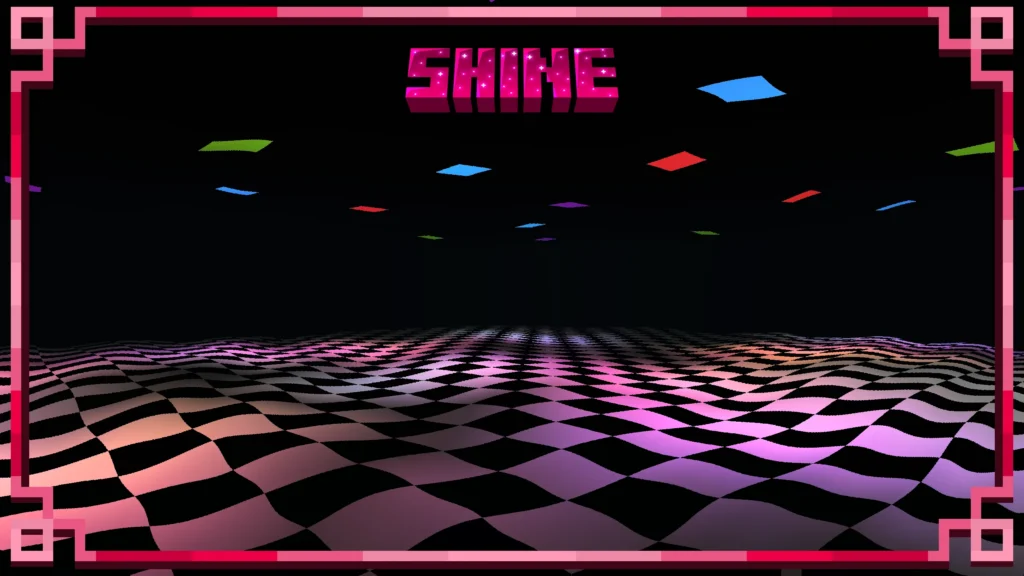
The Shine 3.0 visual mod transforms Minecraft graphics by adding dynamic lighting, interactive vegetation, and weather effects without relying on traditional shaders. We previously covered all the graphical features and capabilities of Shine 3.0 in detail, and this guide provides a step-by-step walkthrough for installing the mod on Minecraft Java Edition 1.21.11 using the Fabric mod loader.
What You Need to Run the Mod
Before starting the installation, make sure your setup meets the official developer requirements:
- Game version: Minecraft Java Edition 1.21.11;
- Mod loader: Fabric Loader 0.18.4 or newer;
- System libraries: Fabric API 0.140.0+ and Sodium 0.8.12+;
- Java version: Java 21 or newer.
Step-by-Step Installation Guide
1. Prepare a Clean Game Instance
Open the official Minecraft Launcher, select the Java Edition 1.21.11 profile, and launch the game once to the main menu. This automatically generates the necessary system files and directories for this version. Once the main menu loads, close the client.
2. Install Fabric Loader
Download the official Fabric Installer and run the file. In the configuration window, specify:
- Minecraft Version: 1.21.11
- Loader Version: latest version (0.18.4 or higher)
- Create Profile: check the box
Click Install. The installer will automatically create a dedicated profile in the launcher.
3. Download Required Dependencies
For the renderer to work properly, download two required mods for version 1.21.11:
- Fabric API (version 0.140.0 or newer);
- Sodium graphics optimizer (version 0.8.12 or newer).
4. Download the Shine 3.0 Mod
Download the installation file shine-3.0.jar from the creator’s page on CurseForge or via the official Shine Wiki website.
5. Move Files to the Game Folder
Press Win + R and enter the following path:
%appdata%.minecraftmods
If the mods folder doesn’t exist, create it manually. Move all three downloaded files into it without extracting them:
- shine-3.0.jar
- fabric-api-….jar
- sodium-….jar
6. Launch the Game
Open Minecraft Launcher, select the newly created Fabric Loader 1.21.11 profile, and launch the game. This is a client-side mod, so it does not need to be installed on servers for multiplayer play.
Controls and Settings Configuration
Once you enter a world, the mod interface will appear on screen. You can access settings using hotkeys:
- K key: open the Shine Studio settings menu;
- B key: toggle the Bloom effect on/off;
- F8 key: display the built-in FPS counter and frame render diagnostics.
For lower-end PCs, the developers included preset profiles under Shine → Performance → Performance Presets. The Medium, Low, and Max Performance options significantly reduce GPU load without turning off visual effects entirely.
Troubleshooting and Compatibility
If the game crashes on launch:
- Verify that all file versions match Minecraft 1.21.11 exactly;
- Try temporarily removing third-party mods and launch the game with only Fabric API + Sodium + Shine;
- Ensure your setup does not include incompatible mods: Nvidium, Immersive Portals, VulkanMod, and Sodium Core Shader Support.